 NLJUG – Nederlandse Java User Group NLJUG – de Nederlandse Java User Group – is opgericht in 2003. De NLJUG verenigt software ontwikkelaars, architecten, ICT managers, studenten, new media developers en haar businesspartners met algemene interesse in alle aspecten van Java Technology.
Author: Cristobal Escobar
Original post on Foojay: Read More
Table of Contents


In the world of modern web applications, data is king—but raw numbers rarely tell the full story. 📈 That’s where visualization becomes crucial, transforming complex datasets into intuitive, compelling narratives. Today, we’re thrilled to introduce BX-Charts, a game-changing charting module that brings professional-grade data visualization directly into the BoxLang ecosystem. 🌟
The Visualization Challenge 🧩
Developers have long struggled with creating meaningful charts:
- 🔧 Complex JavaScript libraries
- 🏗️ Extensive configuration
- 📚 Steep learning curves
- 🚧 Limited flexibility
BX-Charts demolishes these barriers, offering a seamless, powerful charting solution that’s both developer-friendly and enterprise-ready. 💪
Fully Documented
We love ❤️ docs! We have fully documented our module: https://boxlang.ortusbooks.com/boxlang-framework/modularity/charts
Fully Supported
If you have one of our +/++ licenses, you will get personalized support and implementation advice: https://www.boxlang.io/plans
Code Samples: Bringing Data to Life
- Multi-Series Performance Analysis with Per-Series Border Styling
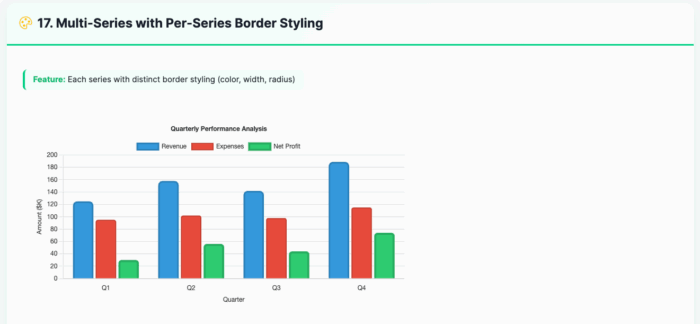
<bx:chart title="Quarterly Performance Analysis" chartwidth="700" chartheight="400" xaxistitle="Quarter" yaxistitle="Amount ($K)" showlegend="true" showygridlines="true" backgroundcolor="##ffffff"> <bx:chartseries type="bar" colorlist="3498db" serieslabel="Revenue" bordercolor="##2980b9" borderwidth="3" borderradius="8"> <bx:chartdata item="Q1" value="125" /> <bx:chartdata item="Q2" value="158" /> <bx:chartdata item="Q3" value="142" /> <bx:chartdata item="Q4" value="189" /> </bx:chartseries> <bx:chartseries type="bar" colorlist="e74c3c" serieslabel="Expenses" bordercolor="##c0392b" borderwidth="2" borderradius="4"> <bx:chartdata item="Q1" value="95" /> <bx:chartdata item="Q2" value="102" /> <bx:chartdata item="Q3" value="98" /> <bx:chartdata item="Q4" value="115" /> </bx:chartseries> </bx:chart> - Line Chart with Variable Border Widths
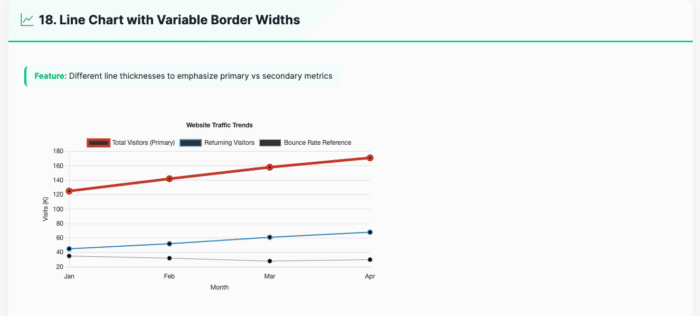
<bx:chart title="Website Traffic Trends" chartwidth="700" chartheight="400" xaxistitle="Month" yaxistitle="Visits (K)" showlegend="true" showygridlines="true" showmarkers="true" backgroundcolor="##ffffff"> <bx:chartseries type="line" colorlist="e74c3c" serieslabel="Total Visitors (Primary)" bordercolor="##c0392b" borderwidth="5"> <bx:chartdata item="Jan" value="125" /> <bx:chartdata item="Feb" value="142" /> <bx:chartdata item="Mar" value="158" /> <bx:chartdata item="Apr" value="171" /> </bx:chartseries> <bx:chartseries type="line" colorlist="3498db" serieslabel="Returning Visitors" bordercolor="##2980b9" borderwidth="2"> <bx:chartdata item="Jan" value="45" /> <bx:chartdata item="Feb" value="52" /> <bx:chartdata item="Mar" value="61" /> <bx:chartdata item="Apr" value="68" /> </bx:chartseries> </bx:chart> - Responsive Dashboard Layout
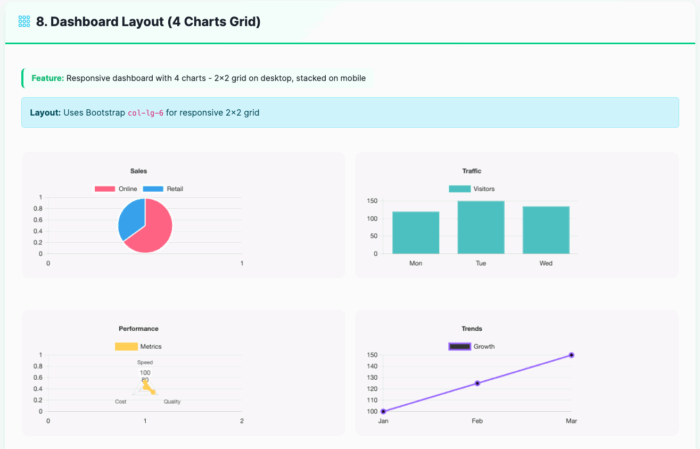
<div class="row g-3"> <div class="col-lg-6"> <bx:chart title="Sales" chartwidth="400" chartheight="250" responsive="true" maintainAspectRatio="true"> <bx:chartseries type="pie" colorlist="FF6384,36A2EB" serieslabel="Sales"> <bx:chartdata item="Online" value="65" /> <bx:chartdata item="Retail" value="35" /> </bx:chartseries> </bx:chart> </div> <div class="col-lg-6"> <bx:chart title="Traffic" chartwidth="400" chartheight="250" responsive="true" maintainAspectRatio="true" showygridlines="true"> <bx:chartseries type="bar" colorlist="4BC0C0" serieslabel="Visitors"> <bx:chartdata item="Mon" value="120" /> <bx:chartdata item="Tue" value="150" /> <bx:chartdata item="Wed" value="135" /> </bx:chartseries> </bx:chart> </div> </div> - Background and Font Styling
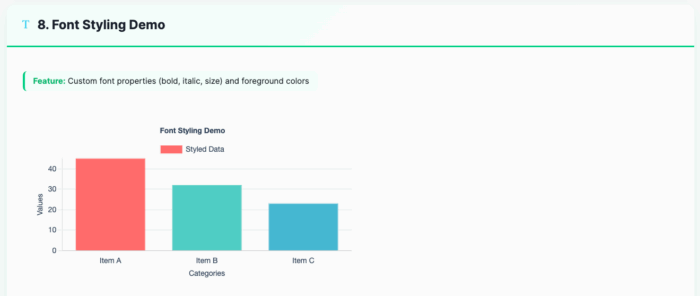
<bx:chart format="canvas" title="Font Styling Demo" backgroundcolor="##ffffff" chartheight="300" chartwidth="600" showlegend="true" fontbold="true" fontitalic="true" fontsize="14" foregroundcolor="##2E4057" xaxistitle="Categories" yaxistitle="Values"> <bx:chartseries type="bar" colorlist="FF6B6B,4ECDC4,45B7D1" serieslabel="Styled Data"> <bx:chartdata item="Item A" value="45" /> <bx:chartdata item="Item B" value="32" /> <bx:chartdata item="Item C" value="23" /> </bx:chartseries> </bx:chart> - Bubble Chart for Multi-Dimensional Analysis
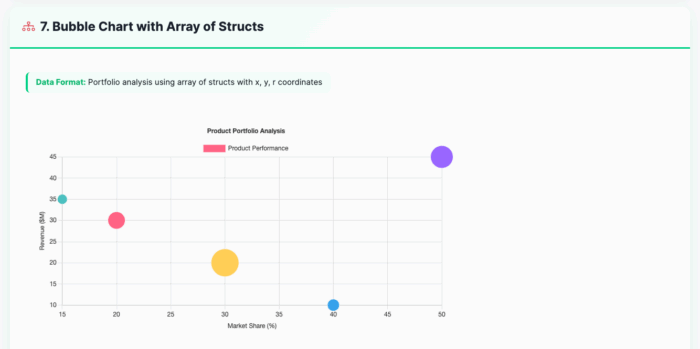
<bx:chart title="Product Portfolio Analysis"
          chartwidth="600" chartheight="350"
          xaxistitle="Market Share (%)"
          yaxistitle="Revenue (millions)"
          showxgridlines="true"
          showygridlines="true">
    <bx:chartseries type="bubble"
                    colorlist="9966FF,36A2EB,FF6384,FFCE56"
                    serieslabel="Products">
        <bx:chartdata item="Product A" x="20" y="85" r="15" />
        <bx:chartdata item="Product B" x="35" y="120" r="20" />
        <bx:chartdata item="Product C" x="15" y="65" r="10" />
        <bx:chartdata item="Product D" x="25" y="95" r="12" />
    </bx:chartseries>
</bx:chart>
Exploring the Possibilities 🔍
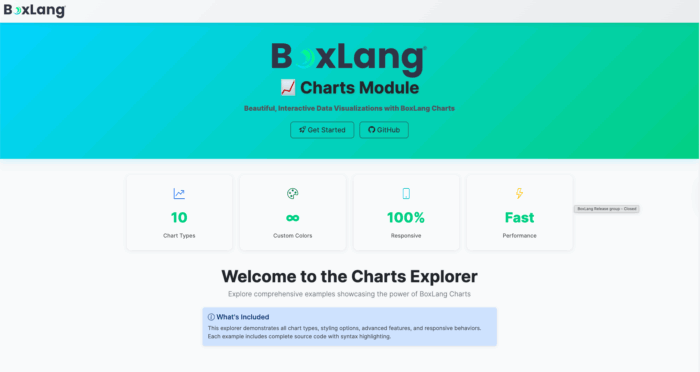
We’ve built an interactive Chart Explorer at charts.boxlang.io, where you can:
- Browse live chart examples
- View source code
- Experiment with different chart configurations
- Learn best practices for data visualization
Installation 🔧
Get started with BX-Charts
# CommandBox Web Apps
box install bx-charts

# Core OS or Other Runtimes
install-bx-module bx-charts
Key Features
- 📊 10 Chart Types
- 📱 Fully Responsive
- 🎨 Customizable Styling
- 🔗 Easy Data Integration
- 🚀 Performance Optimized
Developers, Unleash Your Data! 🌍
Whether you’re building business intelligence dashboards, scientific visualizations, or performance reports, BX-Charts provides the flexibility and power you need. 🔍
Ready to transform your data into insights? BX-Charts is here. 🌟
The post Unleashing the Power of Data Visualization: Introducing BX-Charts for BoxLang appeared first on foojay.