 NLJUG – Nederlandse Java User Group NLJUG – de Nederlandse Java User Group – is opgericht in 2003. De NLJUG verenigt software ontwikkelaars, architecten, ICT managers, studenten, new media developers en haar businesspartners met algemene interesse in alle aspecten van Java Technology.
Author: Jonathan Vila
Original post on Foojay: Read More
Table of Contents

Problem #7: “The ‘Oops’ Moment (Hardcoded Secrets)” 
 A Note on ConfigurationSummary
Hola Java developers! 👋
Let’s be honest. We have all been there. You write a piece of code, it compiles perfectly, the unit tests pass, and you think: “This is solid.”
Then… boom. The CI/CD pipeline fails 20 minutes later because of a security vulnerability. Or worse, a NullPointerException wakes you up on the weekend because you forgot to check if that Optional was actually present.
We want to deliver High Code Quality and Security, but we are humans. We get tired, we lose focus.
The problem isn’t your skill; it’s the feedback loop. Waiting for a Code Review or a CI server to tell you that you made a mistake is fine but what if you can start checking and catching issues earlier as you are writing the code?.
This is where SonarQube for IDE (formerly known as SonarLint) changes the game. It’s the first line of defense.
This is Part 1 of our series. Today, we focus on the Standalone Mode—how to install the SonarQube IDE extension and use it to solve your daily coding headaches right inside IntelliJ.
Problem #1: “I don’t have time for complex tool setups”
We are busy. We don’t want to spend 2 hours configuring a linter script or messing with XML files.
The Solution: SonarQube for IDE is plug-and-play. It works locally, analyzing your code as you type.
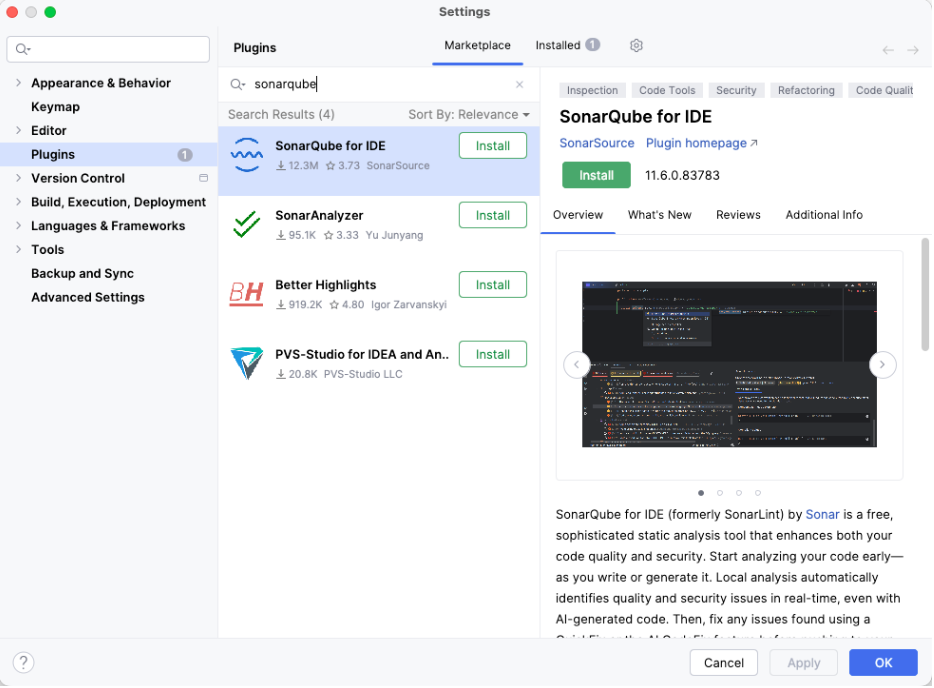
- Open IntelliJ IDEA.
- Go to Settings -> Plugins.
- Search for SonarQube for IDE.
- Click Install and Restart.
That’s it. No servers. No heavy configuration. It just works.
Problem #2: “I think my code is right, but is it?”
You are typing fast. The logic seems sound. But are you accidentally introducing a memory leak? Or a security flaw?
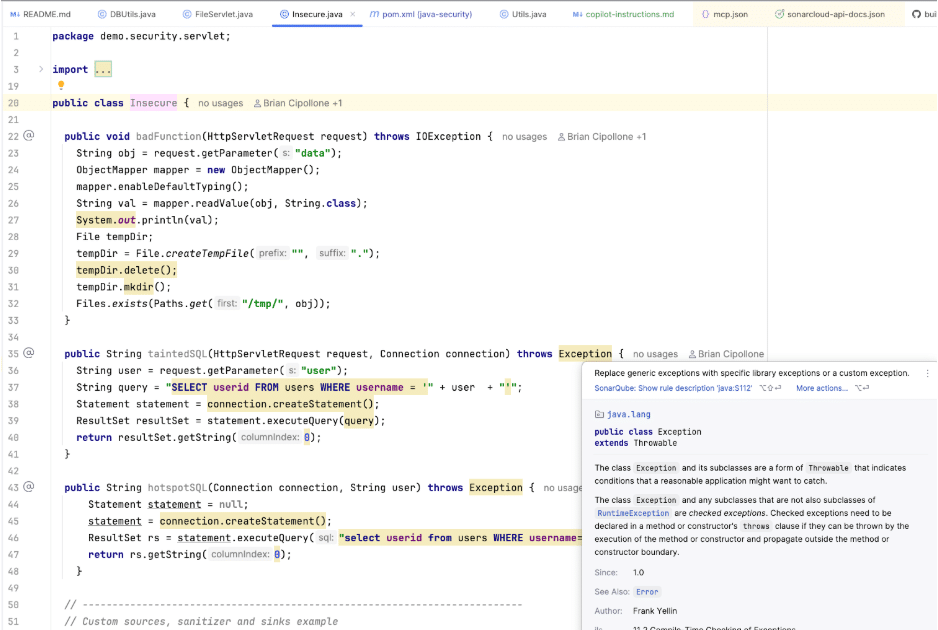
The Solution: SonarQube for IDE acts like a spellchecker, but for logic and security. It scans every single line you type in real-time.
You don’t need to run a command. As soon as you write a bad line, the SonarQube IDE extension detects and highlights it.
- Yellow squiggly line: It works, but it smells (bad practice, confusing code).
- Red squiggly line: It’s broken (Bug) or dangerous (Vulnerability).
It catches the things our eyes miss because we have been staring at the screen for too long.
Problem #3: “Is this urgent, or can it wait?”
Great, now you have 10 warnings. Which one should you fix first? The naming convention issue or the potential crash?
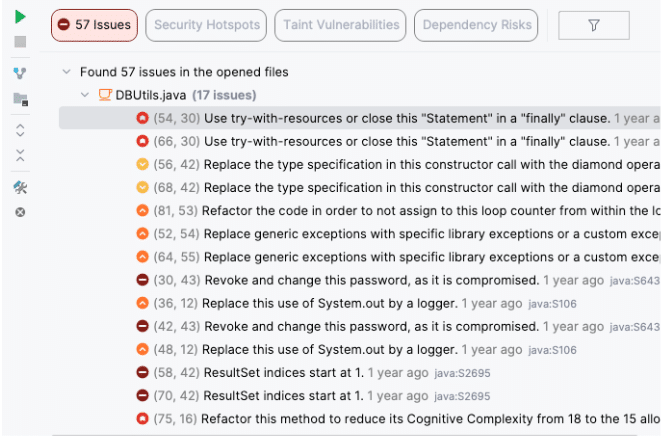
The Solution: SonarQube for IDE gives you the Details you need to prioritize.
If you look at the SonarQube for IDE Tool Window (usually at the bottom), it doesn’t just list errors. It categorizes them so you can make decisions:
- Severity: Is it a Blocker 🛑, Critical 🔴, or just Minor 🟢?
- Type: Is it a Bug (fix now), a Vulnerability (fix now), or a Code Smell (fix when you can)?
You can sort the list by severity and tackle the fires first.
Problem #4: “I’m not just writing Java anymore…”
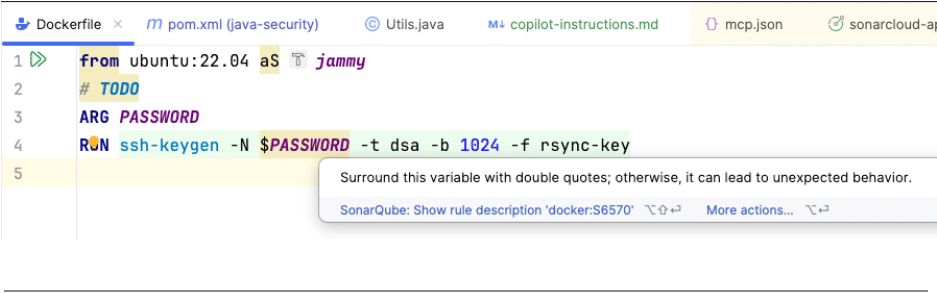
In modern projects, a Java developer is never just a Java developer. You are editing a Dockerfile, tweaking a Jenkinsfile, writing some JavaScript for the frontend, or fixing JSON config.
The Solution: You don’t need five different plugins.
SonarQube for IDE covers over 20 languages, including:
- Java (obviously)
- JavaScript / TypeScript
- Python
- HTML / CSS
- Infrastructure as Code (IaC): Docker, Kubernetes, Terraform, CloudFormation.
It ensures that your deployment scripts are just as secure as your Java classes. It is really satisfying to see the tool catching a security issue in a Dockerfile that you would have completely ignored otherwise.
Problem #5: “I opened a legacy file and got 500 errors. I’m overwhelmed.”
This is the main reason developers uninstall quality tools. You open a class written 5 years ago, and the screen lights up with errors that aren’t yours.
The Solution: You don’t have to fix the past; just ensure the new code is great.
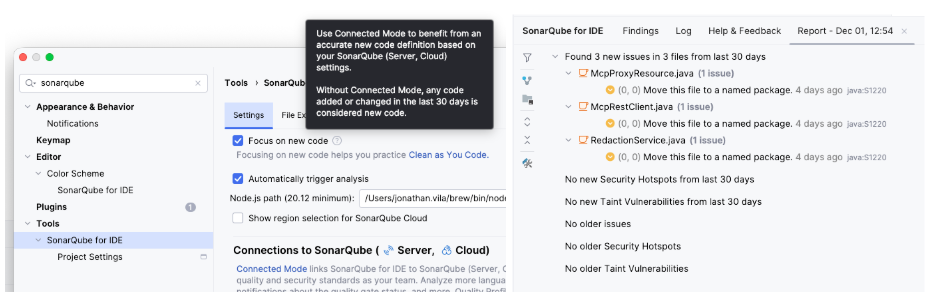
In the tool settings window, enable the setting “Focus on New Code”. This is a mental health saver. It ignores technical debt older than 30 days (this is the default time window when not using the Connected Mode).
Then in the analysis
Problem #6: “I know it’s bad, but how do I fix it?”
SonarQube for IDE doesn’t just complain; it teaches.
Real Example: The “Optional” Trap ⚠️
We use Optional to avoid nulls, but if we are lazy, we crash the app.
The Bad Code:
Optional<User> user = findUser("juan");

// SonarQube for IDE Rule: "Optional.get()" should only be called after "isPresent()"

// Risk: Throws NoSuchElementException if empty

String name = user.get().getName();
The Educational Fix: When you select an issue, SonarQube for IDE opens a Rule Description tab. This is my favorite part. It doesn’t just say “fix this.” It gives you a mini-article explaining why this is an issue and provides clear “Non-Compliant” vs “Compliant” code examples. It effectively trains you to be a better developer while you work.
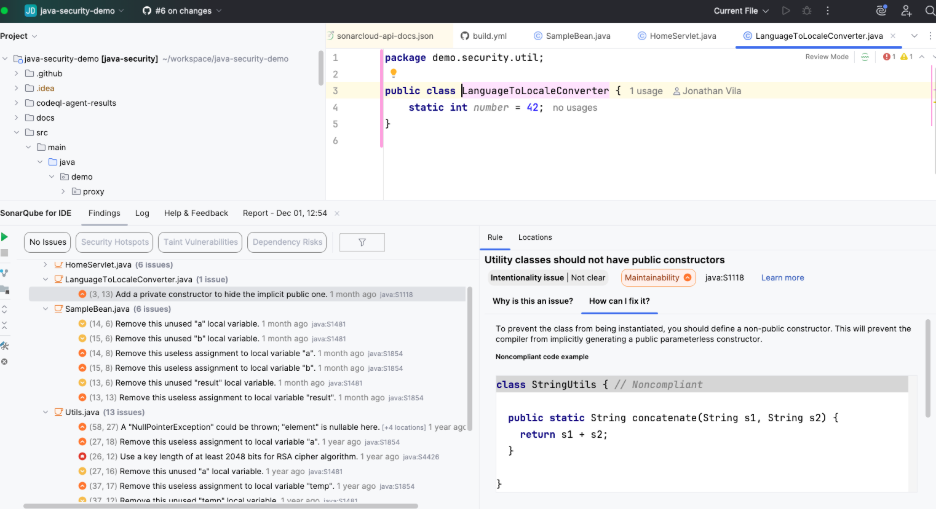
The Quick Fix: Once you understand the issue, you can often (applicable to a subgroup of rules) just hit Alt + Enter (or Option + Enter) and let the tool rewrite the code for you.
The Good Code:
String name = user.map(User::getName).orElse("Unknown");
Problem #7: “The ‘Oops’ Moment (Hardcoded Secrets)” 🔓
This is the nightmare scenario. You are testing a DB connection, so you hardcode the password. You plan to remove it later. You forget. You commit. You push. Too late. Bots have already scraped your repo.
The Solution: Secret Detection in the IDE.
SonarQube for IDE is very sensitive to strings that look like credentials. It detects patterns (high entropy strings, AWS keys, JDBC tokens) and stops you before you commit.
The Bad Code:
public Connection getDBConnection() {

    String url = "jdbc:mysql://localhost:3306/db";

    // SonarQube for IDE triggers a Security Hotspot here

    // "Review this potentially hardcoded secret"

    String password = "superSecretPassword123";

    return DriverManager.getConnection(url, "root", password);

}
It acts as a safety net, reminding you to move that sensitive data to an environment variable or a properties file.
⚙️ A Note on Configuration
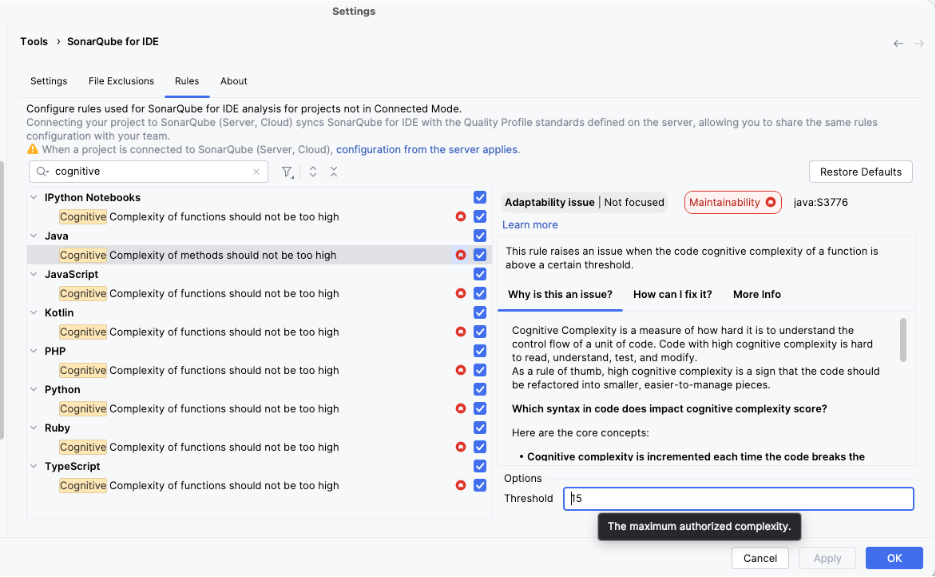
Out of the box, it works great. But if you feel a rule is too strict (e.g., “Method has too many lines”), you are in control.
You can go to Settings -> Tools -> SonarQube for IDE -> Rules. Here you can:
- Disable rules that don’t make sense for you.
- Configure thresholds (e.g., allow 15 lines instead of 10).
Summary
Using SonarQube for IDE is about coding with confidence. It catches the silly mistakes, the security holes, and the bad practices in real-time, across all your project files (not just Java!).
But wait… what happens if your teammate uses different rules? What if you want to sync this configuration with the whole company?
That is exactly what we will talk about in Part 2: The Power of Connected Mode.
Stay tuned! 😉
If you can’t wait, go ahead and get started with the free SonarQube for IDE tool.
The post 🚀 A Java Developer’s Guide to SonarQube for IDE: Stop Fixing Bugs on Fridays (Part 1) appeared first on foojay.